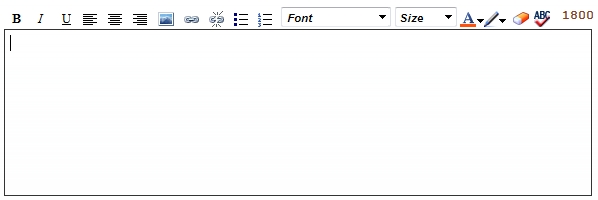
Based on MLS setup , the HTML editor may be available for the following fields:

|
Bold, italicize, or underline text |

|
Choose right, center, or left alignment for text |

|
Insert picture (see below) |

|
Insert or remove link (see below) |

|
Create a bullet or numbered list |

|
Choose text or highlight color |

|
Clear formatting (see below) |
1. Upload your picture to a photo hosting site, such as Photobucket or Flickr.
2. Click the
button.
3. Enter the URL of the image into the box and click OK.
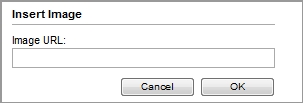
1. Highlight the text or picture that you wish to make into a link and click the
button.
2. Enter the URL of the link into the text box.
3. Click OK.
Highlight the text or picture of the link that you wish to remove and click the  button.
Highlight the text that you wish to clear formatting for and click the button.